Canvas is a popular learning management system for online learners. By having a good understanding of how Canvas online courses work, students can easily access course materials, submit assignments, take quizzes, participate in discussions, check grades, manage deadlines, and communicate with instructors.
Universities, schools, and other educational organizations typically use different Learning Management Systems (LMS) for delivering and managing courses online. Among them, Canvas is widely used for the extraordinary features and benefits it offers. Most importantly, instead of visiting several websites to look for study materials, assignments, grades, and messages, Canvas allows you to access all of these in one place.
Therefore, when pursuing online courses, you can use Canvas to easily find your weekly learning materials, submit your assignments, take quizzes, engage in discussions, receive feedback from the instructor, and track upcoming deadlines. As each institution and instructor can customize Canvas differently, there could be some variations in layout and functionality. However, knowing how Canvas online courses work will make e-learning much simpler for you, reduce the time you spend navigating to different areas, such as modules, assignments, grades, announcements, and messages, and maximize study time. If you wish to learn in detail about the working process and features of Canvas, read this blog.
Instructure’s Canvas LMS powers more than half of all online college programs in North America, organizing your semester into sequential weekly Modules, SpeedGrader rubrics, Turnitin dropboxes, and New Quizzes. When busy students ask our experts to take my online class on Canvas, we log in through encrypted residential VPNs that match your exact local timezone to complete every locked module in order. Whether you are a freshman navigating Canvas for the first time or a returning adult learner, this walkthrough covers every dashboard feature plus troubleshooting common Canvas problems.
What Is Canvas and How Does It Work?
Canvas is a web-based learning management system developed by Instructure. College and university students can log in to their institution’s Canvas portal using their credentials to access the platform and find information about the online courses they are enrolled in.
Canvas includes tools for course content, assignments, quizzes, discussions, calendars, grading, communication, and notifications. Specifically, the Canvas Dashboard will show information about courses and activity, and individual course pages will provide content and activities for a particular course.
But Canvas does not make all courses look the same. In Canvas, the instructors may divide and arrange their course content into weeks, topics, units, or any other structure. So, besides learning how to use the Canvas interface, students need to familiarize themselves with the course syllabus and guidelines issued by the instructors.
How Canvas Online Courses Work

This is how you should utilize Canvas LMS while taking online education
1. Logging In and Accessing Your Course
First, log in to your institution’s Canvas portal. After signing in, you will most likely be directed to the Dashboard.
Choose the appropriate course to open its homepage. Within the course homepage, locate the course navigation section, which will usually contain tabs like Home, Modules, Assignments, Discussions, Grades, Quizzes, Calendar, and Announcements according to your instructor’s settings.
If the course does not show up on Canvas, ensure that you are logged in using the right institutional credentials. If the issue persists, reach out to your institution’s support team.
2. Understanding the Canvas Dashboard
Dashboard is the central place where you can view all Canvas activities, that includes courses, recent activity, upcoming assignments, To-Do items, and recent feedback.
Calendar will help you organize deadlines and dates of scheduled classes. You can use the Inbox for Canvas conversations. On the other hand, notifications will inform you about any course activities.
Remember not to use the dashboard as your only source of information. View the course homepage, modules, syllabus, and announcements as well, because instructors might provide valuable information there.
3. Accessing Course Modules and Materials
Typically, most online classes use modules to structure the learning materials. A module may have a lecture, a reading, a video, a discussion forum, a quiz, and an assignment.
Go through the modules in the recommended sequence by your instructor. Also, before you begin working on an assignment, read through all the learning materials around it. This may help you know what your instructor expects from you and reduce the chance of missing a required resource.
4. Completing and Submitting Assignments
Open an assignment to view its instructions, deadline, type of submission, and other required details. A Canvas assignment may offer different options for you to upload files, submit text online, submit media files, or something else set by the instructor.
Never assume that an assignment submission is successful just by uploading a file. After submitting your work, confirm the submission status of your assignment before you move on. Canvas also provides several other ways to access assignments from places like Dashboard, Calendar, Syllabus, Grades, and Modules.
5. Taking Online Quizzes and Exams
Online quizzes and exams will show up depending on the setting done by the instructor. But before you take up the Canvas quiz, make sure to check all of its instructions, including the due date, number of attempts, duration, and other requirements.
Usually, timed quizzes and exams need special consideration. Specifically, you should check whether your internet connection is stable, close unnecessary browser tabs, and learn how to submit the quiz correctly. If you experience any technical issues while attending your online quiz or exams, report it as soon as possible to your instructor or technical support service.
6. Participating in Canvas Discussions
Discussions will give you a chance to respond to instructor prompts and interact with other students. In a graded discussion, an original post may be followed by responses to other students’ posts.
Before you participate in a Canvas discussion, ensure that you go through the prompts carefully and understand the guidelines regarding the number of words, response deadline, citing references, among others.
7. Checking Grades and Instructor Feedback
Grades section in Canvas will provide an opportunity for you to view your current scores and feedback. In general, depending on how the course is configured, instructors may provide comments, annotations, rubrics, or other feedback.
Simply by checking grades, you can identify whether there are missing assignments or other problems that require attention. Canvas will also support feedback through tools such as its document preview and annotation features.
8. Communicating With Instructors
There is an Inbox in Canvas that you can use to have conversations related to your courses. Moreover, you need to regularly monitor course announcements because instructors use them to communicate schedule changes, reminders, or other important information.
When you have a query, make sure that you provide sufficient information that will help the instructor understand what the problem is. For example, instead of posting something like, “Canvas is not working”, make sure to specify the course, assignment, and specific problem.
Key Canvas Features Every Student Should Know
The following are some of the most valuable Canvas features you should be aware of
- Dashboard: It gives information about courses and activities.
- Course Navigation: It assists students in navigating among course sections.
- Modules: It groups lectures, reading materials, activities, and assessment assignments.
- Assignments: It provides requirements, deadlines, submission methods, and other details related to assignments.
- Calendar: It highlights upcoming course events and deadlines.
- Announcements & Notifications: It presents course news and alerts.
- Discussions: It enables discussions between students and between students and teachers.
- Inbox: It offers a Canvas messaging service.
- Grades and Feedback: It shows marks scored and instructor’s comments.
- Canvas Student app: It provides access for students to many course services using a mobile device. Specifically, the official Canvas Student app will allow you to use courses, calendar, To-Do items, notifications, messaging, and grades, but not all the features of Canvas are available within the app.
How to Submit Assignments on Canvas
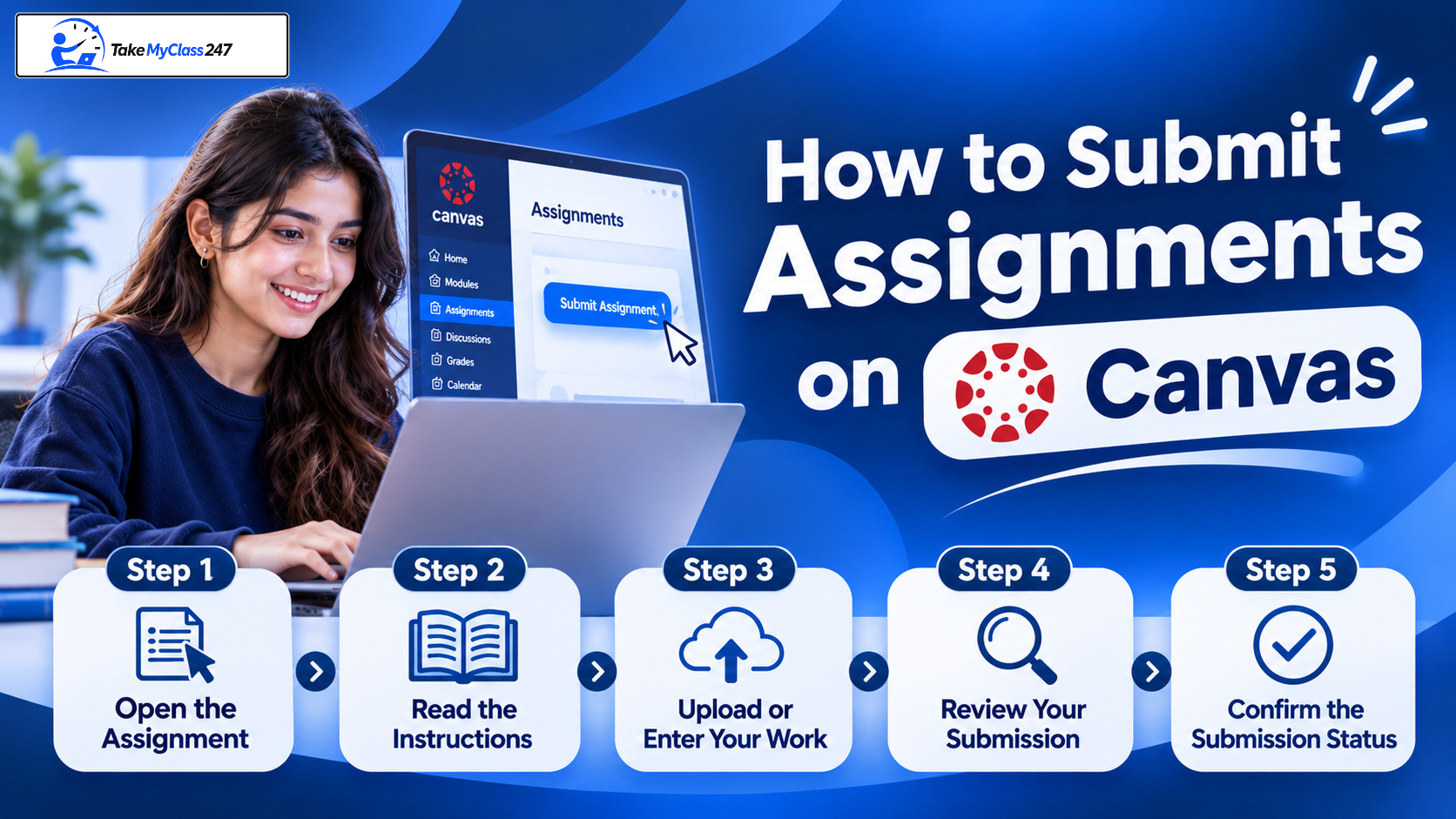
If you want to submit your online course assignments on Canvas, then follow these steps
Step 1: Open the Assignment
Click on Assignments or go to the assignment from its module, dashboard, calendar, or another course link.
Step 2: Read the Instructions
Review the assignment instructions to know the required criteria, deadline, acceptable file type, word count, grading rubric, and submission process.
Step 3: Upload or Enter Your Work
Choose the right submission method. Click to submit your file or enter your response as instructed in the form of text.
Step 4: Review Your Submission
Before you submit your assignment, ensure that you have uploaded the correct file that opens without any issues. If text was entered directly into Canvas, check whether it is completed and formatted correctly.
Step 5: Confirm the Submission Status
Finally, find out whether the submission has been recorded properly or not. Keep copies of your assignments and submission records, as they may serve as evidence.
How to Manage Deadlines in Canvas
Effective deadline management begins with constant checks of Canvas. In Canvas, you can utilize the calendar features to view all scheduled activities in the online course and the to-do list to find out the upcoming tasks.
In addition, adhering to these tips will also help you manage your deadlines
- Enable deadline alerts when necessary.
- Develop your own study plan for each week.
- Look at your quizzes, assignments, and exams that are due in the coming days.
- Divide your assignment into small parts.
- Ensure that you hand in your work earlier than the last few minutes.
Overall, Canvas tools can support organization, but you will have to manage your own study time to meet your academic deadlines.
Common Problems Students Face with Canvas
These are some common problems that several students experience while they use Canvas for online learning
1. Login and Access Issues
Students may struggle to log in to the Canvas platform because of incorrect credentials, account problems, or institutional access settings. When basic troubleshooting fails, it is important to contact the institution’s support team.
2. Missing Course Materials
If the course materials are unpublished or placed in a different module, then students cannot access the required learning resources. To spot missing course materials, it is necessary to check the module sequence and course announcements at the beginning.
3. Assignment Submission Errors
There are possibilities for students to face assignment submission errors because of the use of unsupported file formats, uploading the wrong file, or leaving the submission incomplete. Mainly, to avoid these errors, students need to carefully check their assignment submission guidelines.
4. Unclear Deadlines
What appears to be the deadline at one location may not be the whole story. When the deadlines are unclear, students need to compare their assignment description, course syllabus, calendar, and instructor announcements.
5. Technical Problems during Quizzes
When taking online quizzes or exams, students may experience browser problems, connectivity errors, or device issues. In such cases, students need to immediately report the technical problem by providing relevant details.
6. Difficulty Understanding Course Navigation
Each instructor will set up the Canvas course page differently. Therefore, it might take more time for students to explore the course homepage, modules, assignments, grades, and syllabus sections.
Tips for Succeeding in Canvas Online Courses
Follow these tips if you want to succeed in your Canvas online courses
- Regularly track the course announcements.
- Stick to the weekly modules in the prescribed order.
- Try to complete the assignments before the deadlines.
- Check the grades and feedback from the instructors.
- Maintain good study habits consistently.
- Seek clarification from the instructors in case of any doubts or technical issues.
- Keep important documents well-organized even outside the Canvas portal.
Common Mistakes to Avoid on Canvas
Fixing the common mistakes you make on Canvas will help you complete your Canvas online course successfully.
- Do not ignore Canvas course announcements, or else you might miss important information.
- Never assume that all course requirements will be found in Dashboard notifications. Navigate to other tabs such as the homepage, modules, syllabus, etc., as well.
- Avoid waiting till the last minute to upload your assignments.
- Do not close Canvas immediately after uploading an assignment without checking its submission status.
- Avoid overlooking instructor feedback on Canvas. Feedback will explain your mistakes, clarify expectations, and help you improve your future work.
Frequently Asked Questions
How do Canvas online courses work?
Typically, Canvas online courses use a combination of modules, assignments, quizzes, discussion forums, course content, grading, announcements, and communication options. But this setting will change depending on your institution and instructor.
How do I submit an assignment on Canvas?
If you want to submit an assignment on Canvas, open up the assignment tab, read its requirements, select the preferred method of submitting the assignment, upload or enter the work, and confirm the assignment status on Canvas.
Can instructors track student activity on Canvas?
Canvas can record certain course activity and interaction data. But what data the instructors can view will depend on the particular settings put in place by the institute.
How do I check my grades on Canvas?
Click Grades in the course menu. This will allow you to view your grades and the feedback provided by your teacher.
What should I do if Canvas is not working?
Check whether your internet connection is stable, make sure you have signed in with the right account, and try refreshing your browser or clearing your cache. If you experience difficulties while taking quizzes or assignments, take a screenshot and report it to both your teacher and the technical support team immediately.
Can I access Canvas courses on my mobile phone?
Yes, you can use the Canvas Student application to view your courses, schedule, to-do list, notifications, and grades. However, note that some functions can only be performed using a web browser.
Conclusion
Canvas integrates all the features of online education into a single learning management system. Students can use Canvas to access materials, submit assignments, take quizzes, engage in discussions, check grades, get feedback, and communicate with instructors.
Here, what matters most is how students make use of Canvas actively instead of making visits to the platform on a task-related basis. If you are an online learner, then in Canvas, you should check announcements, go through modules, monitor deadlines, verify assignment submission status, and look at feedback regularly. In case you experience difficulties in using this learning management system, taking online class help from takemyclass247.com will provide you with numerous benefits.