Most common Canvas problems that students face can be resolved by checking the internet connection, browser, course settings, and app. But when a Canvas issue affects a deadline, it is essential to immediately report the error to the instructor or institution.
Canvas is commonly utilized for online classes, but even in familiar learning platforms, there may be some issues. Sometimes students may have difficulties accessing the platform, locating their courses, submitting assignments, loading a quiz, checking grades, and receiving notifications. Also, they may face certain technical problems when a browser, the Internet connection, mobile application, and course settings do not work properly.
Fortunately, for the common Canvas problems, there are a few simple solutions like checking the internet connection, updating the browser, reviewing the course settings, and recording the error messages. But when the issue affects an exam or assignment due dates, then it is important to inform the institution or instructor. Read this blog if you want to know in detail about the common Canvas problems students face and the ways to resolve them.
From third-party LTI launch errors in McGraw-Hill Connect and Pearson MyLab to frozen quiz timers and Turnitin upload glitches, technical hiccups on Canvas always seem to strike five minutes before midnight. Students who partner with TakeMyClass247 online class specialists never lose points to portal malfunctions because our tutors complete and verify every module submission at least 24 hours ahead of deadline. If you are troubleshooting an access error, browser cache conflict, or missing gradebook sync on your own, use the technical fixes below alongside our complete guide to how Canvas courses work.
What Is Canvas and Why Do Students Experience Problems?
Canvas is a web-based learning management system (LMS) that educational institutions use to provide course material, assignments, quizzes, discussions, grades, and announcements to their students. It was developed by Instructure to make online learning simpler. Users can access Canvas through a web browser or the Canvas Student mobile application.
When using Canvas, students may face problems for various reasons. Some of these reasons may include an old browser version, blocked cookies/JavaScript, unstable internet, faulty user accounts, and non-published courses. Instructure advises the use of a new or older major version of supported browsers like Google Chrome, Firefox, Edge, or Safari to resolve these common issues.
12 Common Canvas Problems Students Face and How to Solve Them
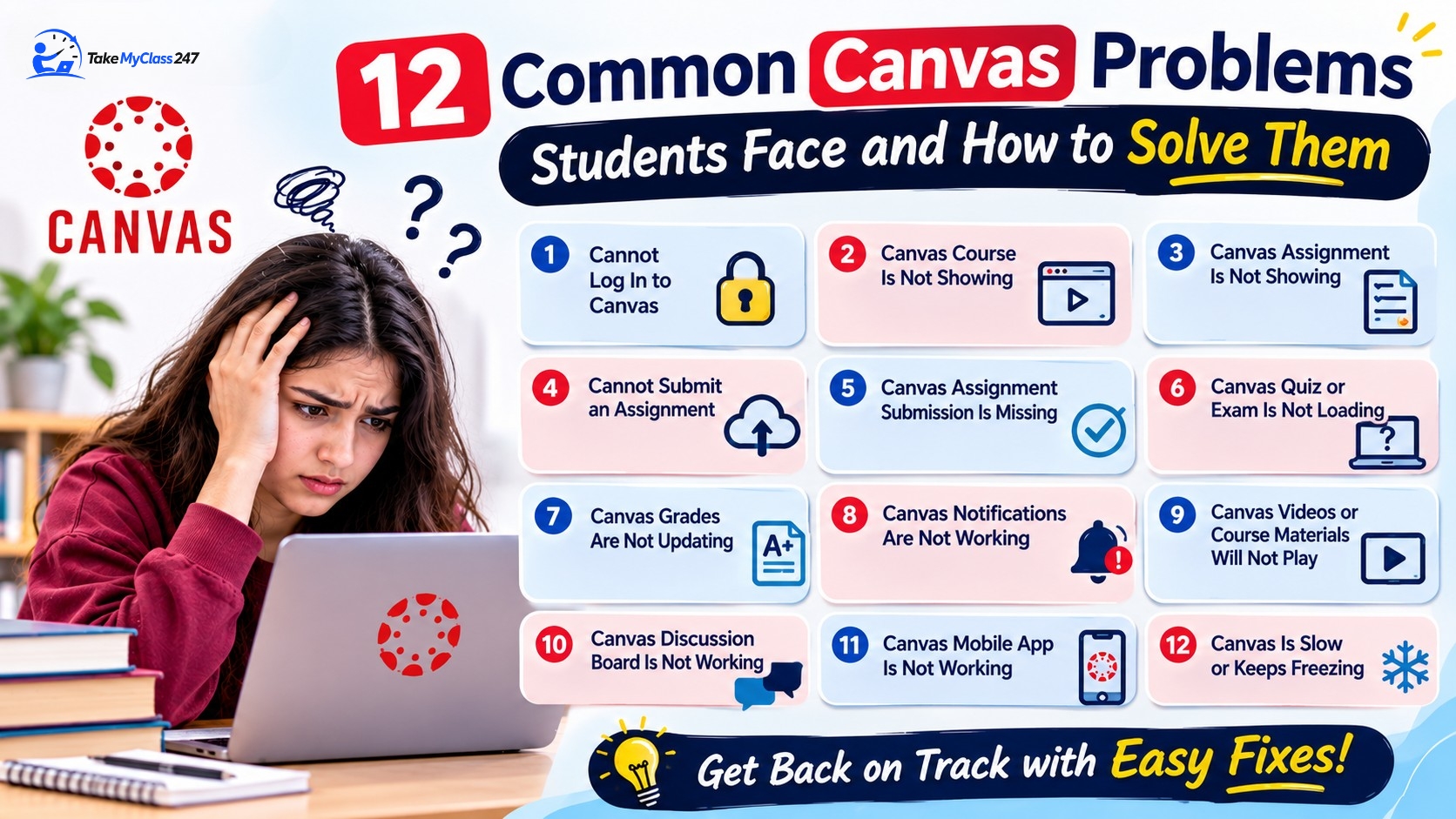
Here we have listed 12 common problems that students face when they use Canvas and the possible ways to fix those issues
1. Cannot Log In to Canvas
Generally, to access Canvas, you must have an account and the correct institutional credentials. If your login data does not work in Canvas, first confirm that you have used the right Canvas site for your educational institution and that you have the correct username and password.
If you still do not have access or fail to log in, go through the procedure for resetting the password provided by the institution. In case your account is not yet active or you are not certain about the Canvas URL, get in touch with your institution’s technical staff or learning support team.
2. Canvas Course Is Not Showing
Check Open Courses and look under All Courses to determine whether the course is showing up. A course may not show up because the course has not started yet or is not published yet.
If the course itself does not appear at all, get in touch with your instructor or institution. According to Canvas, students will not be able to view course content until the course is published and made accessible to them.
3. Canvas Assignment Is Not Showing
First, check the Modules, Assignments, and Course Announcements tabs. Your instructor may choose to put the assignment into a module and not feature it on the course homepage.
In addition, check whether the assignment has been published and whether the start date for the assignment’s availability has started yet. If other students see the assignment but you do not, then immediately contact your instructor.
4. Cannot Submit an Assignment
Make sure that your file format and size meet the assignment criteria. If the upload fails, refresh Canvas and try again.
Instructure advises users to keep their browser up-to-date and to allow cookies and JavaScript. Therefore, use a current supported web browser. Also, make sure that the file has been uploaded successfully as indicated by Canvas. Never take it for granted that the selection of a file means that the assignment has been submitted.
5. Canvas Assignment Submission Is Missing
If you think you submitted the assignment but it doesn’t appear anywhere, check the assignment page and the Grades section. Also, take a look at the submission details, timestamps, or confirmation information.
Make sure to keep screenshots or any other information related to important submissions. If there is no such record, get in touch with the instructor right away and explain what happened.
6. Canvas Quiz or Exam Is Not Loading
First, check whether you have a stable Internet connection, and then try to refresh the page and attempt it once more. If the quiz still does not load, consider trying another supported browser or another device.
Using a current browser is important because the lack of compatibility between some browsers can be an issue in Canvas. In case an exam deadline is close, you should get in touch with the instructor without waiting until the deadline expires.
7. Canvas Grades Are Not Updating
The grade will not automatically show up right after submission. Some instructors manually grade your assignments, whereas others use other methods of grading and giving feedback.
See if there is an update to the assignment’s status, instructor feedback, and the Grades page. If there is no grade after a reasonable amount of time, ask your instructor when grades usually get updated.
8. Canvas Notifications Are Not Working
Canvas enables you to set up notifications according to your preference. Therefore, verify the settings of your notifications and make sure that the appropriate email address or communication channel is selected.
In addition, make sure that your email address is entered correctly and check your spam or junk folders. Also, configure the notification preferences for available communication channels in the Canvas Student app.
9. Canvas Videos or Course Materials Will Not Play
Check your internet connectivity first. After that, update your browser and try refreshing the page.
Browser add-ons can sometimes affect the embedded course content. So, you should turn off those extensions temporarily. Alternatively, you could use another supported browser or device.
10. Canvas Discussion Board Is Not Working
Check if the discussion is already open and if its availability period has already passed. Some discussions may also require you to make your initial post before answering other students’ posts.
Go through the instructions, word limit, posting guidelines, and deadline. If the discussion is not there even when it is supposed to be visible, then get in touch with your professor.
11. Canvas Mobile App Is Not Working
If your Canvas Student app does not work, check for an available update of the app. Also, make sure that you have an active internet connection on your phone and all the required permissions granted.
In case the issue persists, try to reset the app or install it again. You can also use Canvas through a supported mobile browser as a temporary alternative.
12. Canvas Is Slow or Keeps Freezing
Canvas could be operating slowly due to the browser, computer, network, or temporary issues on the service end.
In such instances, first, clear your cache and cookies in your browser. Close any unnecessary tabs and programs, and then restart your browser. If this does not resolve the problem, use another supported browser or network As per Instructure’s recommendation, you need to clear the cache and cookies when browser-related problems exist even after updating the browser.
How to Troubleshoot Canvas Problems Quickly
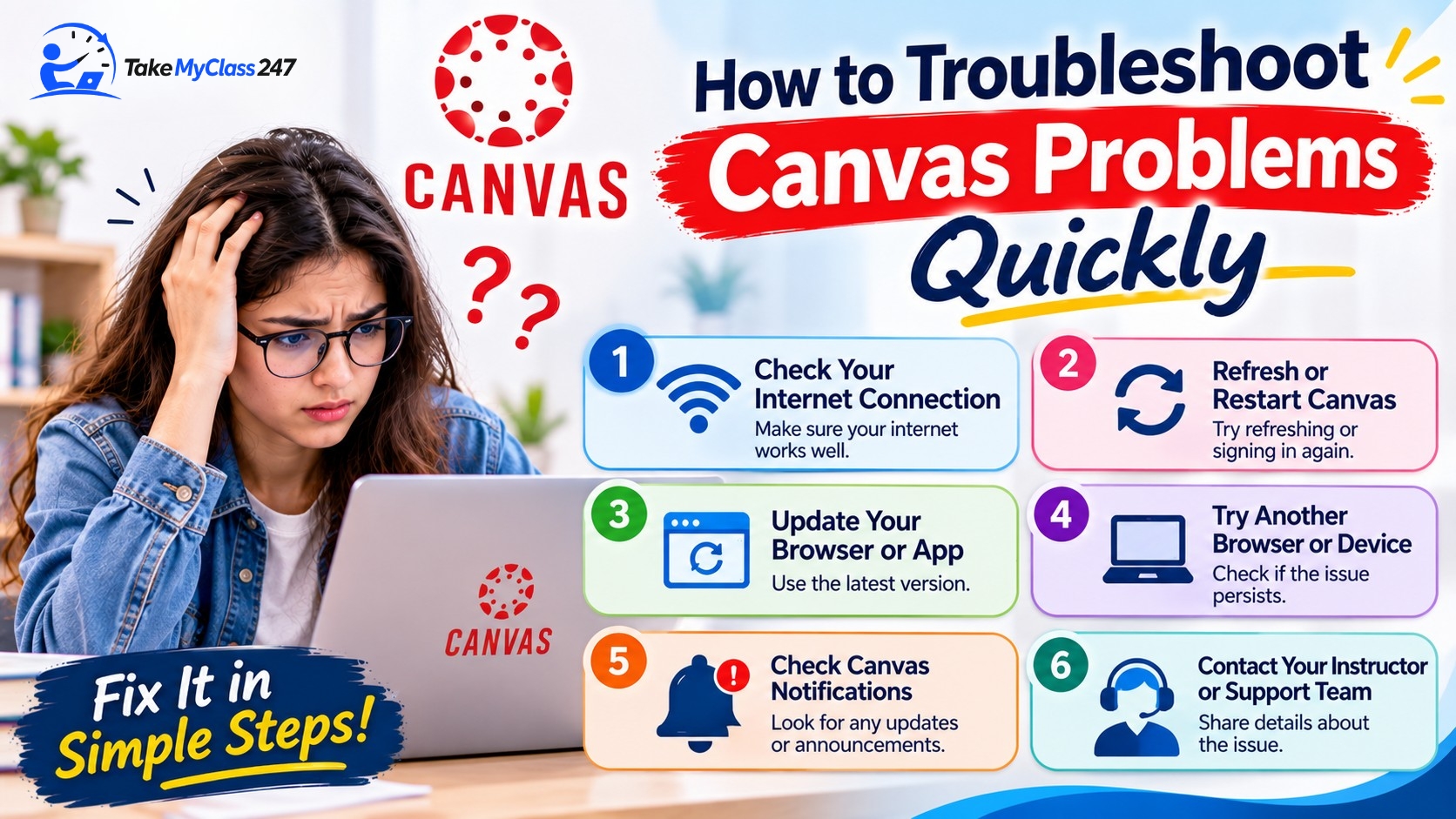
If you want to troubleshoot Canvas problems before reaching out to an expert for assistance, then follow these steps
- Check Your Internet Connection: Make sure your Internet connection works well. See if other websites work properly.
- Refresh or Restart Canvas: Try refreshing or restarting Canvas. You can sign in and out of your account if necessary.
- Update Your Browser or App: Make sure that your browser or app is updated. An outdated version can cause compatibility problems.
- Try Another Browser or Device: Use a different browser or device. It will help you find out whether the problem is connected to a specific device or not.
- Check Canvas Notifications and Course Announcements: Look if there is any notification or announcement from the instructor in Canvas. Your instructor could mention something about the problem you are experiencing.
- Contact Your Instructor or Institution’s Support Team: Call your instructor or support team from your institution and provide all information regarding your course, assignment or quiz involved, error message, and steps you have tried.
What to Do If a Canvas Problem Affects a Deadline
Whenever there are technical issues in Canvas that will make you miss the deadline, immediately document it.
Take screenshots of the errors shown to you and note down the time and date. Also save all the information regarding your assignment or quiz submission, like the deadline time, and any file that you tried to upload.
In addition, you should check if your learning institution has an individual process for Canvas or technical issues. Follow the process and make sure you maintain evidence of tickets, emails and other pertinent documents to prove later on. According to Canvas support guidelines, screenshots or exact error messages should always be used to report technical issues.
How to Prevent Common Canvas Problems
By following certain practices, you can prevent unnecessary problems with Canvas.
- Keep your web browser, OS, and Canvas application up-to-date.
- Frequently check Canvas for new announcements, course-related updates, and deadlines.
- Complete assignments on time without waiting till the deadline.
- Have a stable Internet connection available if possible.
- Store backups of all the important assignments.
- Save screenshots or confirmation of submission for important assignments.
- Double-check your notification preferences to avoid missing any course-related updates.
Frequently Asked Questions
Why can't I log in to Canvas?
You cannot log in to Canvas if you use incorrect credentials or the wrong URL. Sometimes enrollment delays, system outages, and browser cache or cookies can also block you from accessing Canvas.
Why is my Canvas course not showing up?
You cannot view a Canvas course if the course is unpublished, hidden from the dashboard, has not started yet, or your enrollment hasn’t been processed.
Why can't I submit an assignment on Canvas?
You cannot submit an assignment on Canvas if the internet connection is unstable, browser extensions have blocked the submission buttons, the file format is not allowed by the instructor, the file size exceeds the upload limit, or the assignment submission window has been closed.
Why is my Canvas quiz not loading?
Your Canvas quiz will not load if you have failed to follow the browser requirements, used all available attempts, or accessed it using the wrong credentials. Sometimes a corrupted cache will also cause issues loading a Canvas quiz.
Why are my Canvas grades not showing?
It could be that your instructor is still evaluating your work and hasn’t posted the grades yet. Verify whether your assignments have been properly submitted, and also check whether there are any messages from your instructor.
What should I do if Canvas is not working before a deadline?
Take a screenshot of the problem, including the time when the problem occurred, save a copy of your work, and send an email to your instructor and the institution’s IT support team so they will get to know you tried to submit your work on time.
Conclusion
Most typical issues that people have with Canvas are related to accessing their accounts, availability of courses, assignments, quizzes, grades, notifications, browser, devices, or the internet connection. However, by following some simple troubleshooting steps such as refreshing Canvas, updating software, adjusting settings, and using a different browser, you can resolve the issue.
Sometimes technical problems can occur at the worst possible time. In case a Canvas error affects an assignment, quiz, or deadline, record everything and contact your instructor or institution as soon as possible. Recording can greatly help you understand how to handle the situation. If it is still challenging to fix the Canvas issue, you may also approach the expert team at takemyclass247.com and get customized guidance.